What is Automator and how do you use it?
Barcode Producer makes it easy to create individual barcodes. Some users need to create many barcodes, each with a different value. Automator, part of the Automator & Data Merge add-on, makes it easy to create multiple barcodes in one batch operation, saving you significant time and hassle.
First, select a barcode symbology and create a barcode to your specifications, leaving the Content field blank. Then click the Automator icon (the gear) at the top of the Create window to launch the Barcode Automator tool.
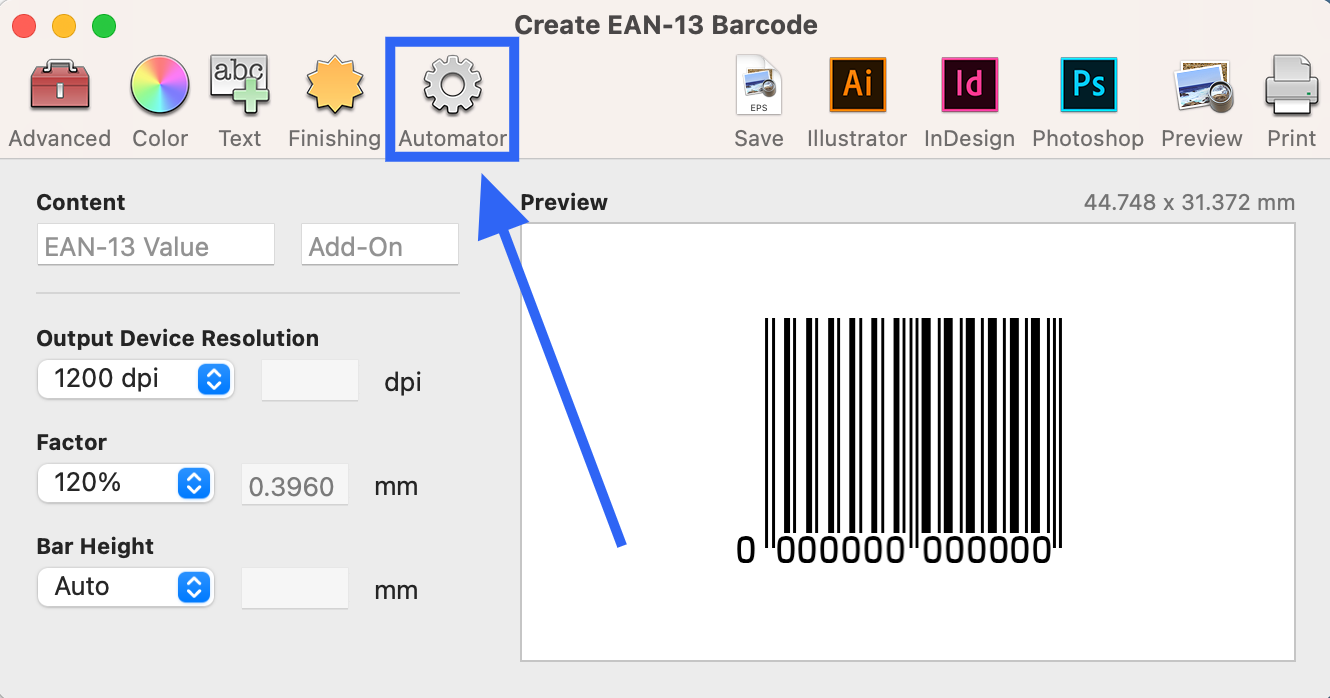
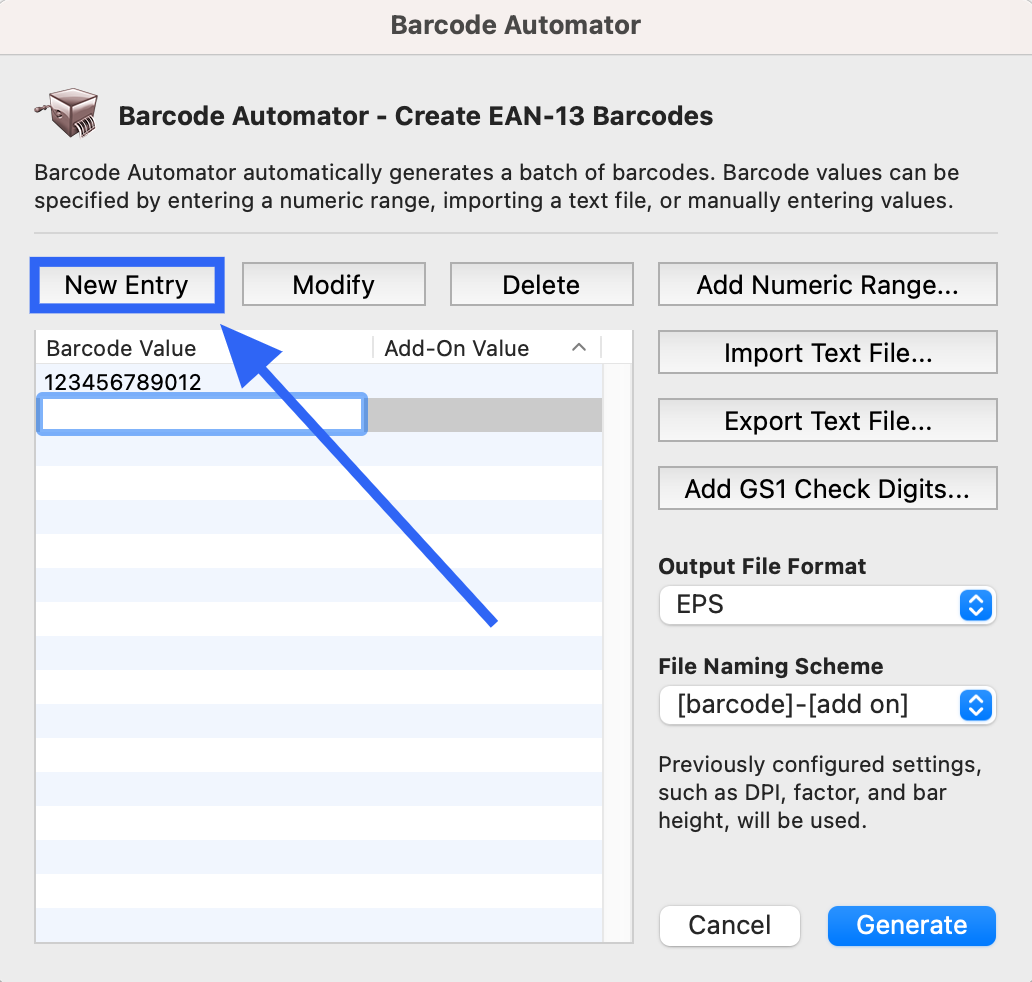
With the Barcode Automator open, you can enter your barcode values in one of three different ways:
1) Click New Entry to manually add your values into the Barcode Value column. Hit the Tab key to edit the Add-On Value column.
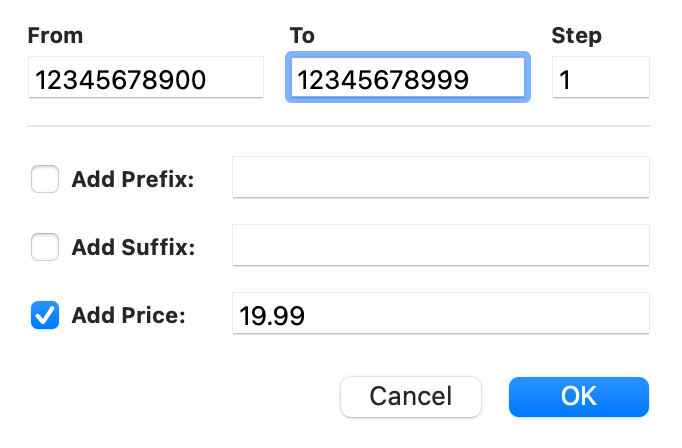
2) If your barcode values are in sequential order, you can add them all at once by clicking Add Numeric Range. Specify the first and last value (plus any prefix, suffix, or price extensions), and then click OK. The software will automatically populate the Barcode Value and Add-On Value columns.
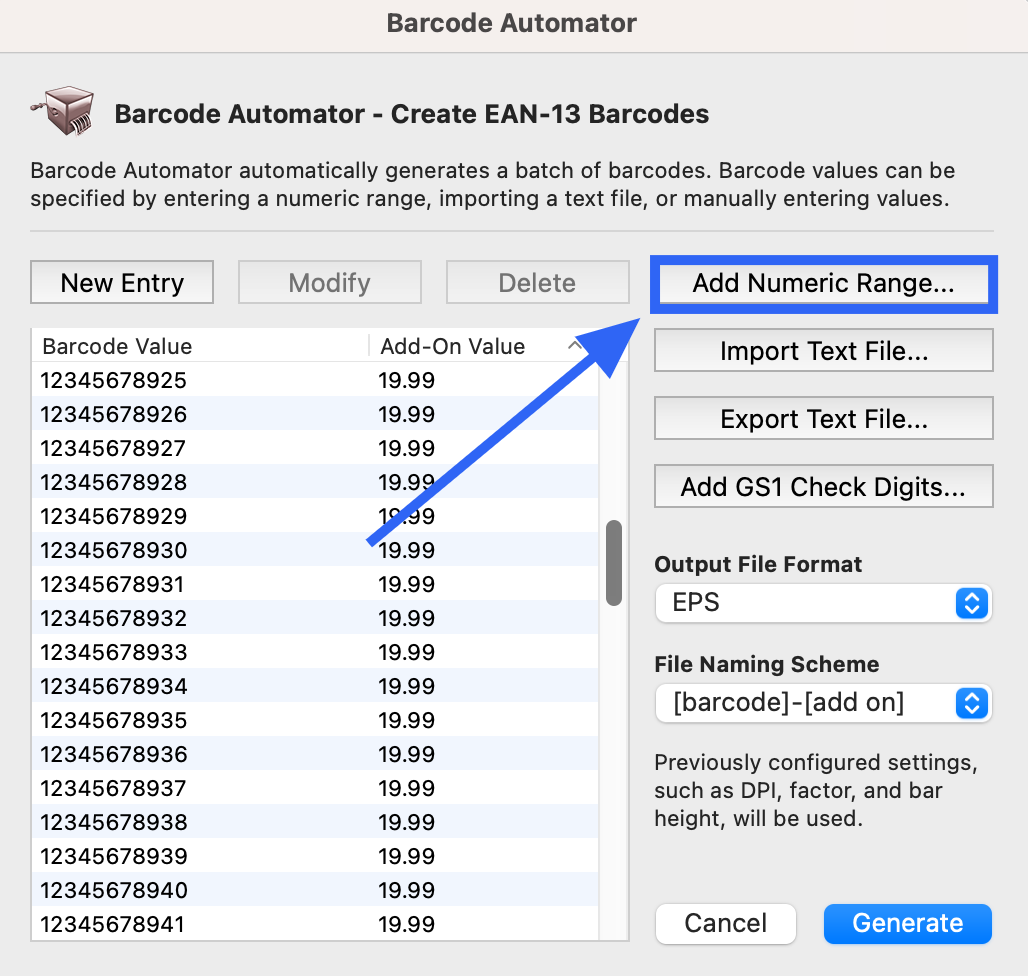
For example, the above list was generated using the below numeric range:
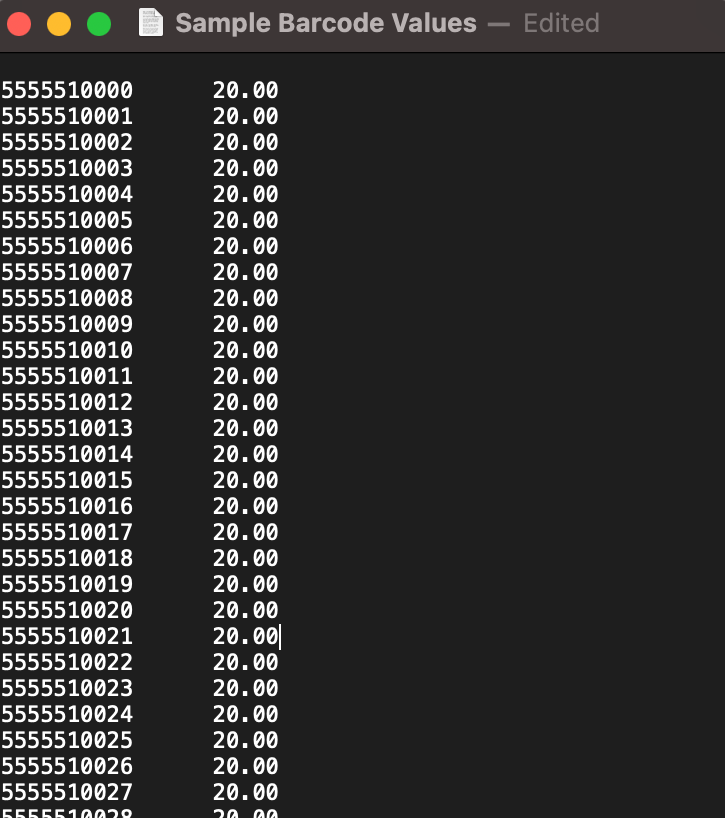
3) Lastly, you can import a text file (.txt) that lists all of your barcode values to transfer them into the software. *(Note: Any prefixes, suffixes, or price extensions should be separated from the main value using the Tab key to ensure that they’re imported into the correct column.)
*
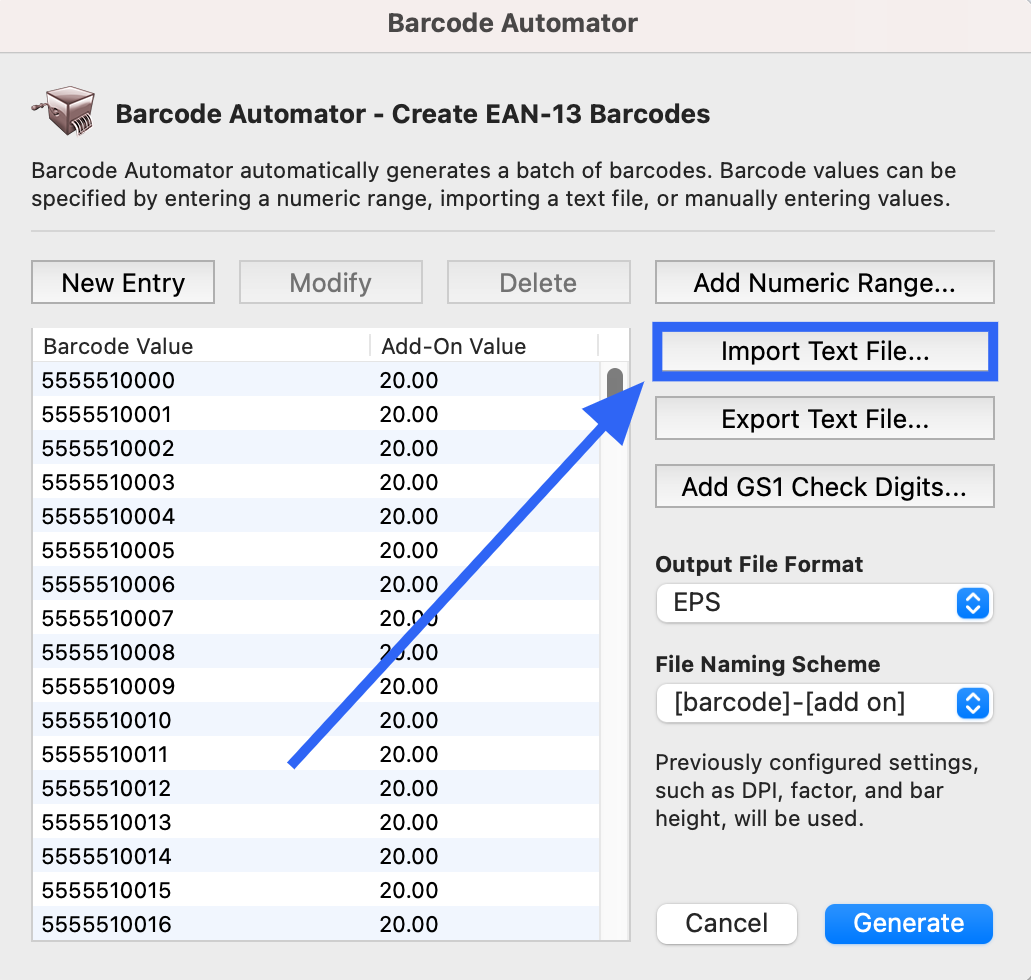
For example, the above list was imported from the below text file:*
*
Once all of your barcode values are listed in the Automator, decide whether or not you need to add a GS1 Check Digit, then select your Output File Format and File Naming Scheme before clicking **Generate.
**
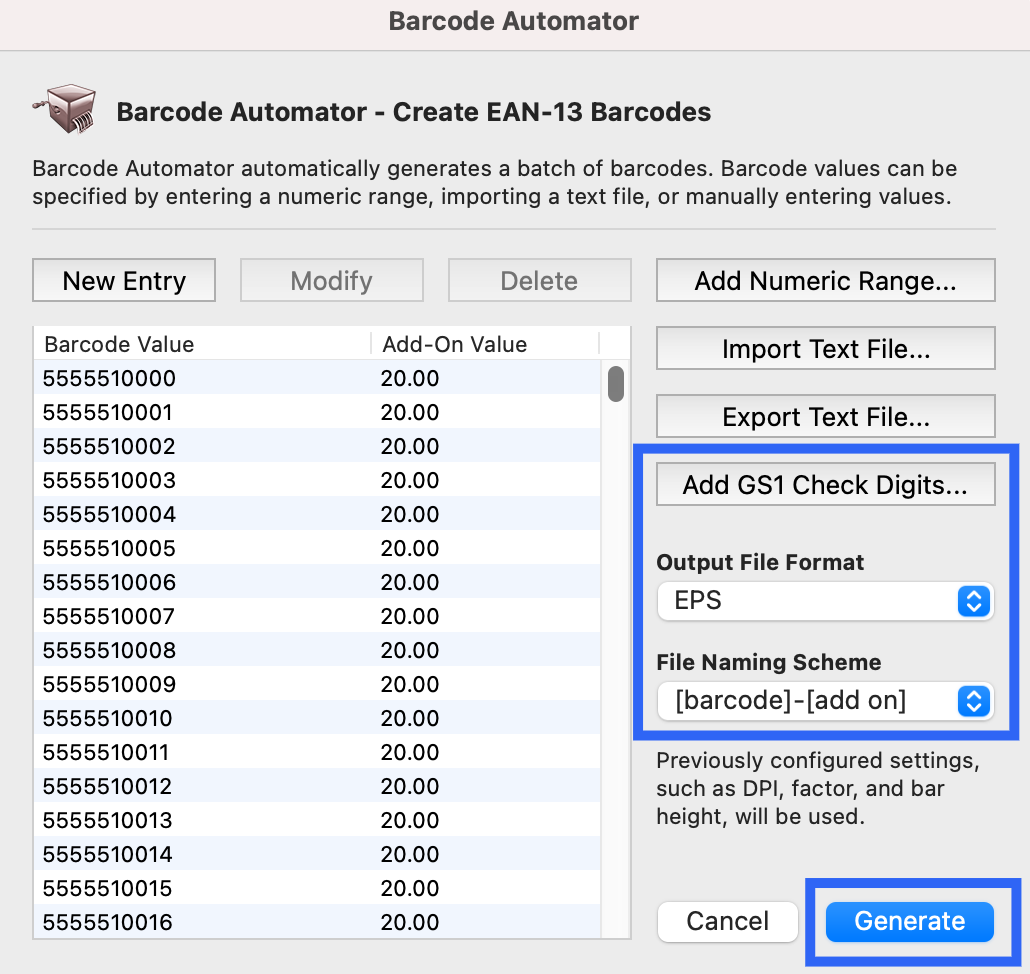
After you click Generate, a File Explorer (Windows) or Finder (Mac) window will appear. Choose where you’d like to store your barcode files and click Open (or Save) to generate your barcodes all at once!
Automator is part of the Automator & Data Merge add-on –